FIRESTICK IPTV SETUP GUIDE

How to Set Up XTREME HD IPTV on Firestick

Follow our step-by-step Firestick IPTV setup guide to configure your streaming application, enter your subscription details and start watching available content on your compatible Amazon Fire TV device.

Step-by-Step Guide
Fire TV Compatible
Easy Installation
Troubleshooting Help
Updated Firestick installation instructions

AMAZON FIRESTICK / FIRE TV SETUP

Amazon Fire TV devices can be used with compatible IPTV applications. For the best experience, choose a supported IPTV player and follow the installation instructions below. IPTV Smarters and TiviMate are examples of IPTV player options.

1
Navigate to Settings → My Fire TV → Developer Options and enable Apps from Unknown Sources when required by the installation method.
2
Search for and install the Downloader application from the Amazon Appstore.
3
Open Downloader and enter the installation code for the IPTV player you want to use.
Recommended Downloader Codes
HotPlayer Recommended
395800
IBO Player
1171959
BobPlayer
815778
Vu Player Pro
327187
IBO Player Pro
481220
Smarters Pro
224877
TiviMate
191081
4
Open your installed IPTV player and choose the appropriate login option. Enter the subscription details provided with your activation email.
i
Need Help? If you have trouble installing or activating your subscription, visit our support page for assistance.
Make sure your Fire TV device is connected to the internet before beginning the setup.
← Back to XTREME HD IPTV
FIRESTICK IPTV SETUP

Enable Developer Options on Firestick

Before installing a compatible IPTV player on your Amazon Fire TV device, you may need to adjust the developer settings. Follow the steps below according to your Firestick software version.

Important: Fire TV menus and setting names can vary depending on your device model and software version. If you do not see the same option shown below, follow the alternative method in the second section.

01

Newer Firestick / Fire TV Versions

Firestick home screen and Settings menu for IPTV setup 01

Press the Home Button

Press the Home button on your Firestick or Fire TV remote to return to the main screen.

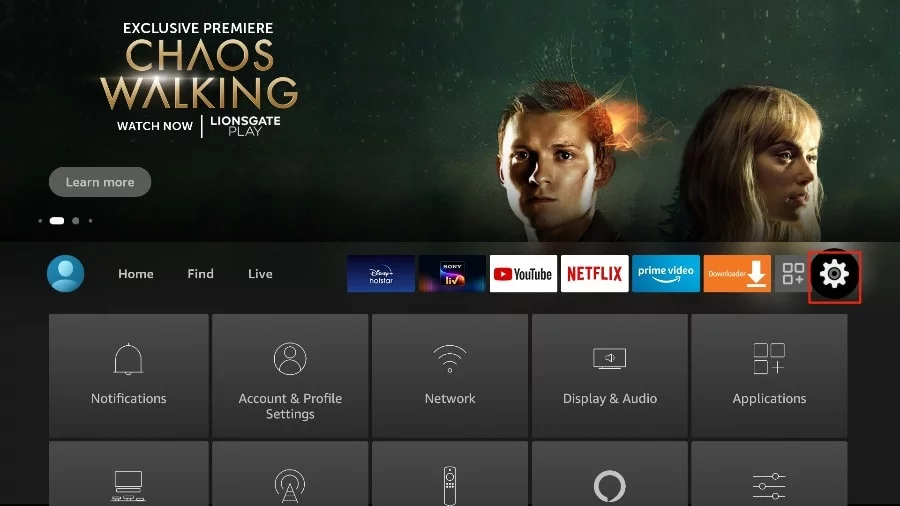
Fire TV Settings screen for IPTV installation 02

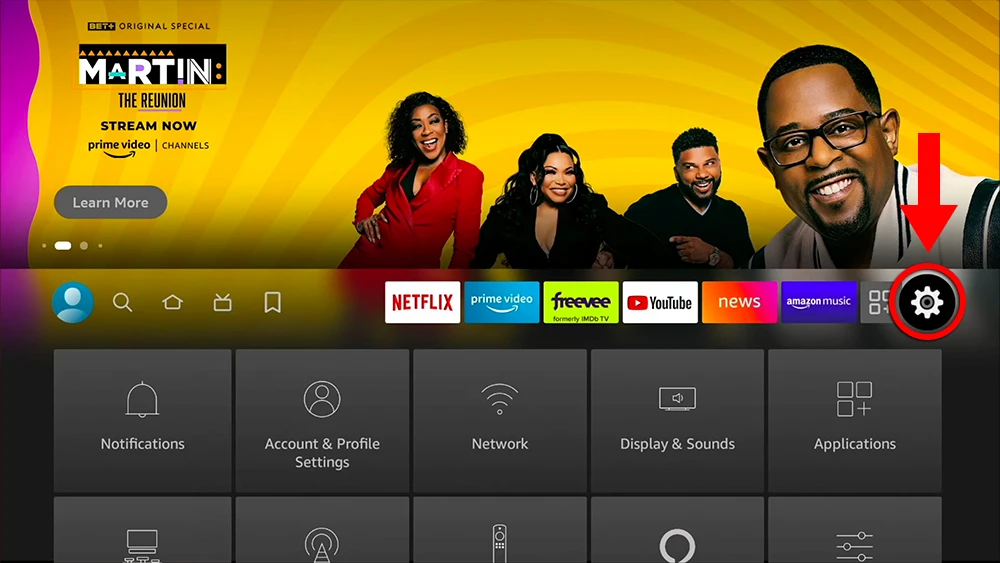
Open Settings

Navigate to the Settings icon, usually displayed toward the right side of the Fire TV home screen.
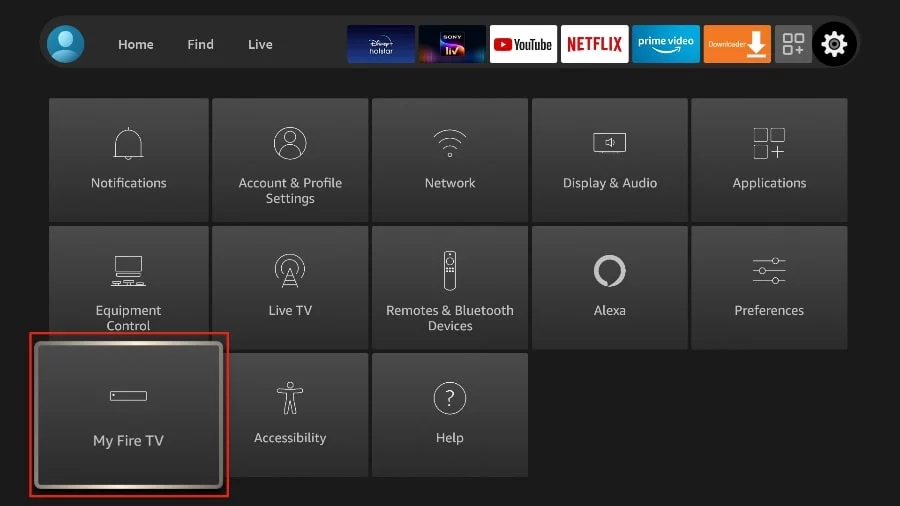
My Fire TV option in Firestick settings 03

Select My Fire TV

Scroll through the settings menu and select My Fire TV.
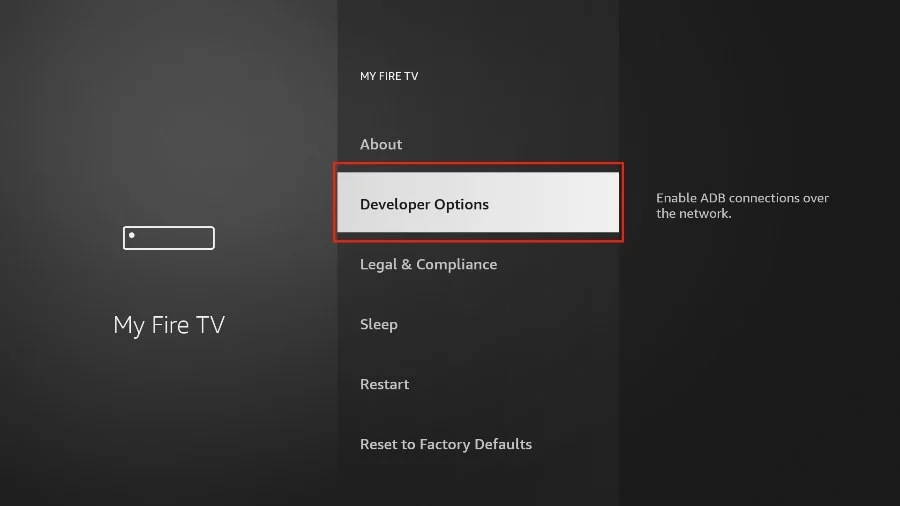
Developer Options on Amazon Fire TV 04

Open Developer Options

Inside My Fire TV, select Developer Options.

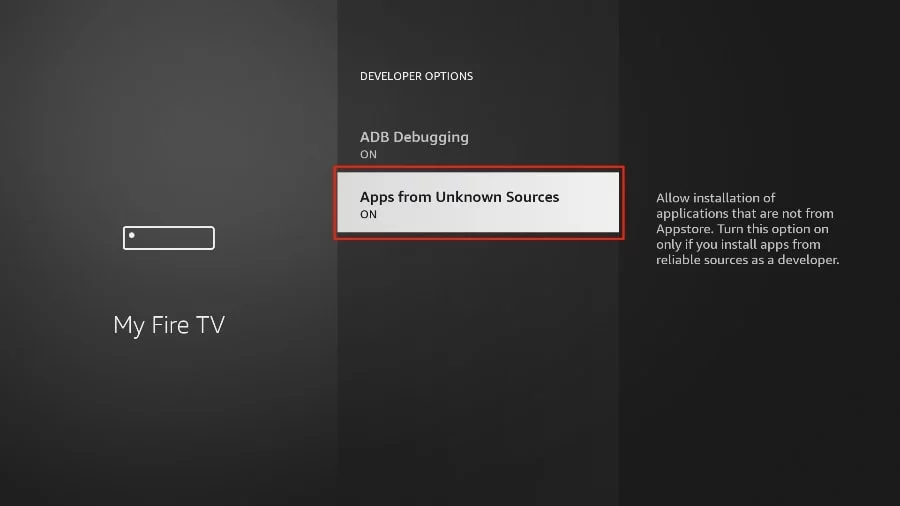
Apps from Unknown Sources setting on Firestick 05

Enable Apps from Unknown Sources

Look for Apps from Unknown Sources. If the option is available and disabled, select it to enable installation of compatible apps from sources outside the Amazon Appstore.

Tip: The exact wording or location of this setting can vary between Fire TV versions.
✓

Developer settings are ready

Once the required developer setting is enabled, continue with the installation instructions for your chosen IPTV player.
02

Alternative Method for Other Firestick Versions

Fire TV Settings menu 01

Open Fire TV Settings

Press the Home button on your remote and open the Settings menu.
My Fire TV menu on Firestick 02

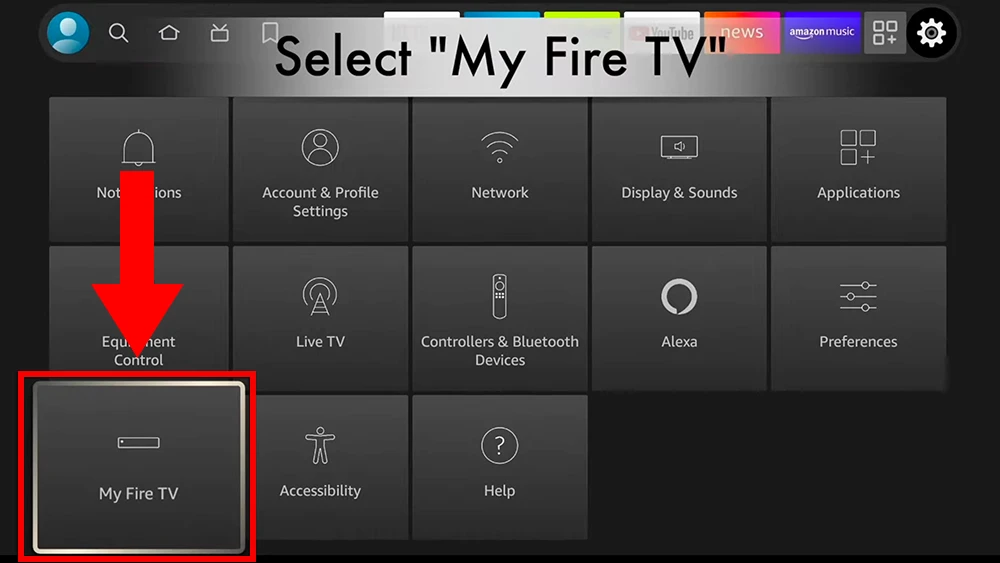
Select My Fire TV

Scroll down and choose My Fire TV from the available settings.
About section in Fire TV settings 03

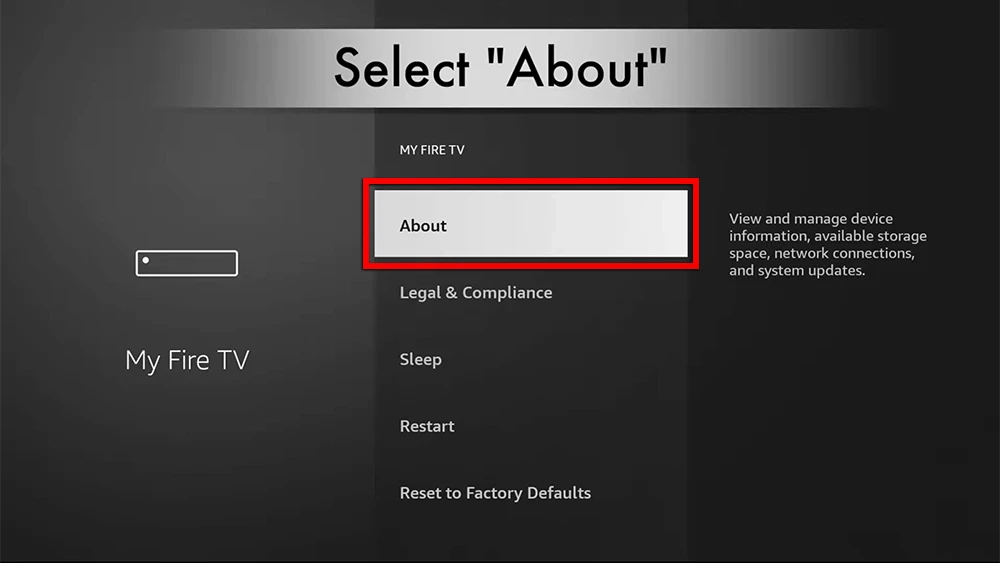
Open About

Select About inside the My Fire TV menu.
Fire TV Stick device information screen 04

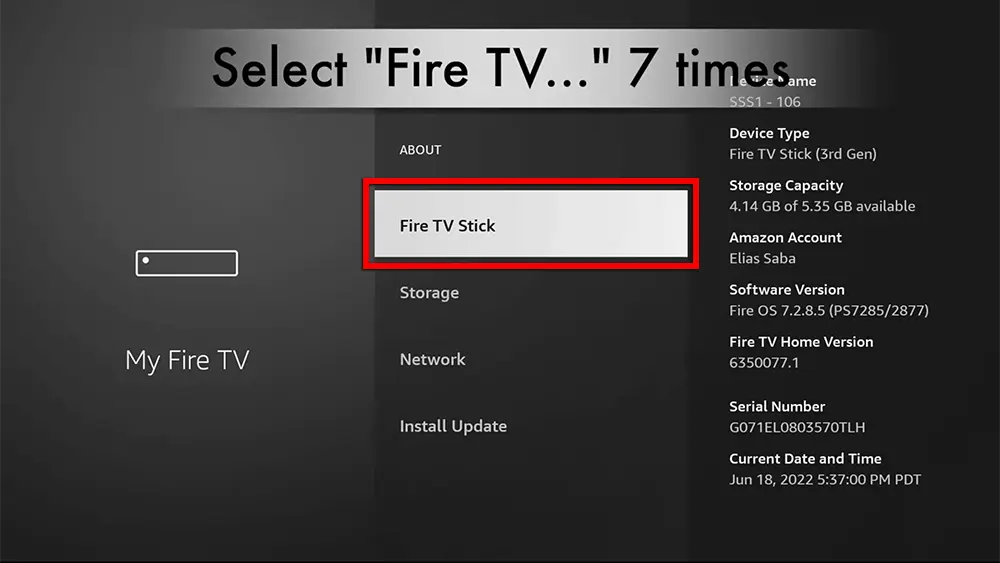
Select Your Fire TV Device 7 Times

Find your Fire TV Stick device name and select it repeatedly, up to 7 times.
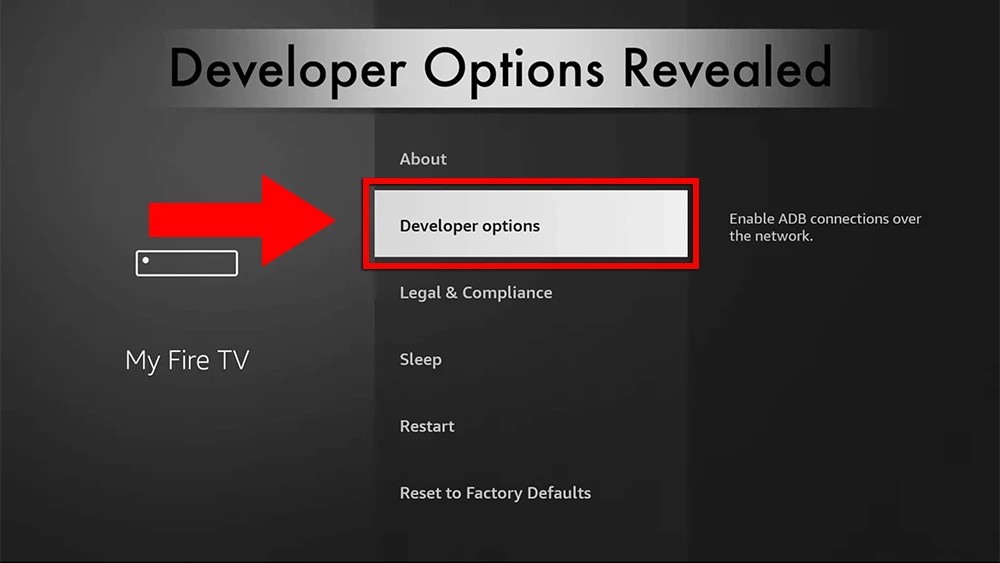
Tip: This can reveal additional developer settings on compatible Fire TV software versions.
Developer Options menu on Fire TV Stick 05

Open Developer Options

Return to the previous menu and select Developer Options when it becomes available.
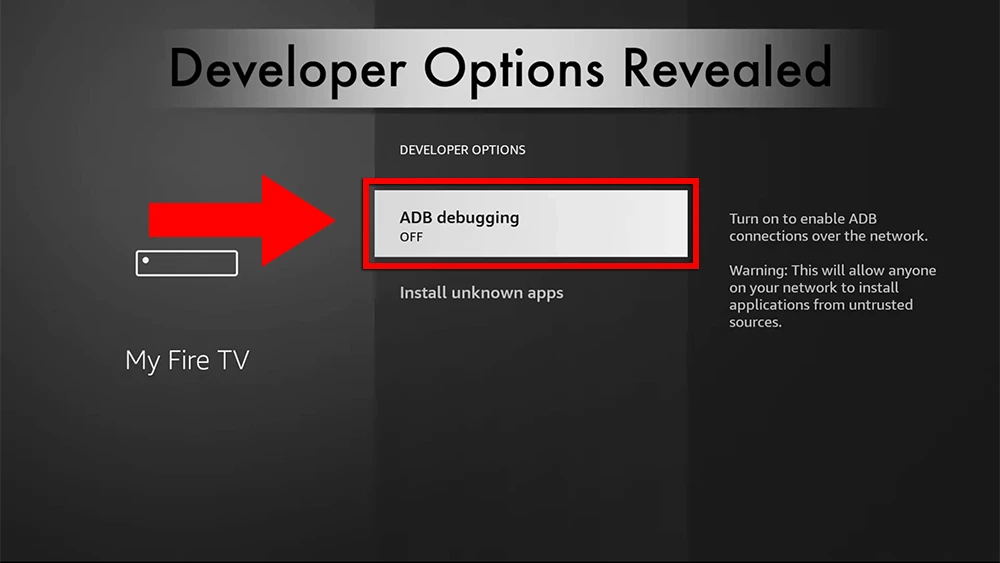
ADB debugging option on Amazon Fire TV 06

Enable ADB Debugging if Required

If your installation method requires it, locate ADB Debugging and enable the option.

Note: ADB Debugging is primarily intended for development and troubleshooting workflows. Only enable settings required for the installation method you are using.
→

Next Step: Install Your IPTV Player

After completing the appropriate Fire TV settings, continue to the next section of this guide to install and configure a compatible IPTV player on your device.

FIRESTICK APP INSTALLATION

Install Downloader on Firestick

Follow these simple steps to find and install the Downloader app on your compatible Amazon Fire TV or Firestick device.

🟠

Before you begin: Make sure your Firestick is connected to the internet and that you have completed the required Fire TV settings from the previous step of this IPTV installation guide.
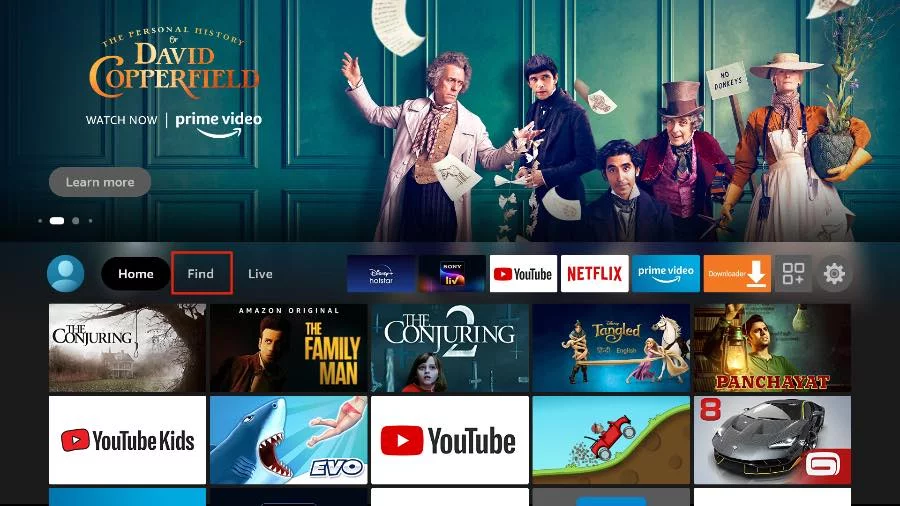
Firestick home screen Find menu for Downloader installation 01

Open the Firestick Home Screen

Press the Home button on your Firestick remote to return to the main Fire TV home screen.
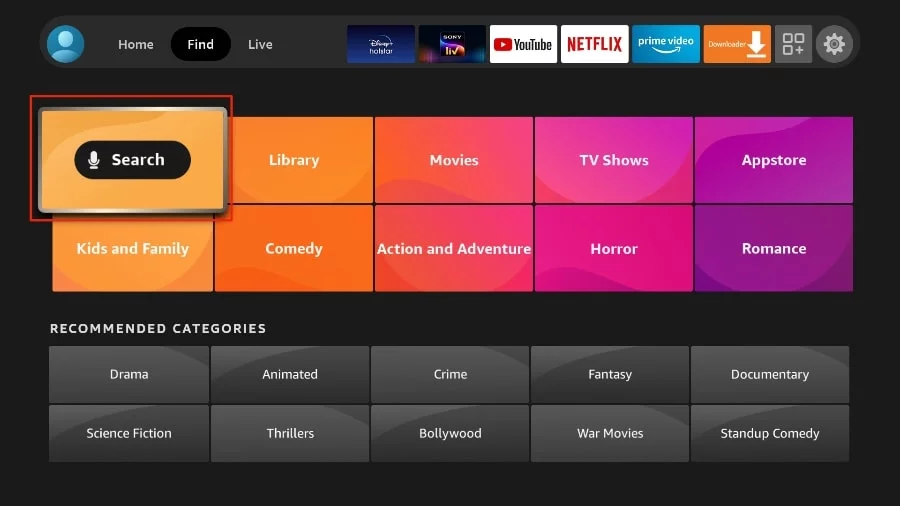
Firestick Find menu and Search option 02

Open the Find Menu

From the Fire TV home screen, navigate to the Find menu.
Tip: Depending on your Fire TV version, the menu layout may look slightly different.
Search option on Firestick for finding Downloader 03

Select Search

Select Search at the top of the Find menu to search for an application.
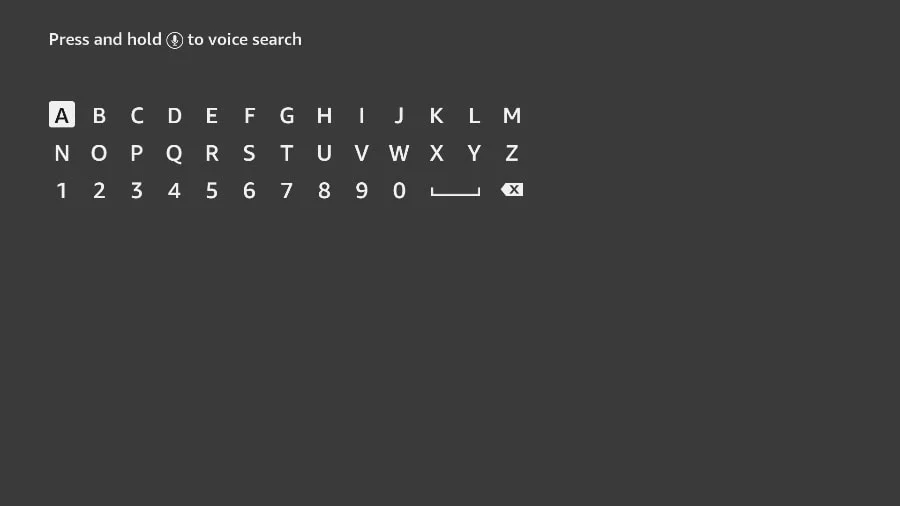
Firestick virtual keyboard used to search for Downloader 04

Use the Firestick Keyboard

A virtual keyboard will appear on your screen. Use your Firestick remote to begin typing the name of the app.
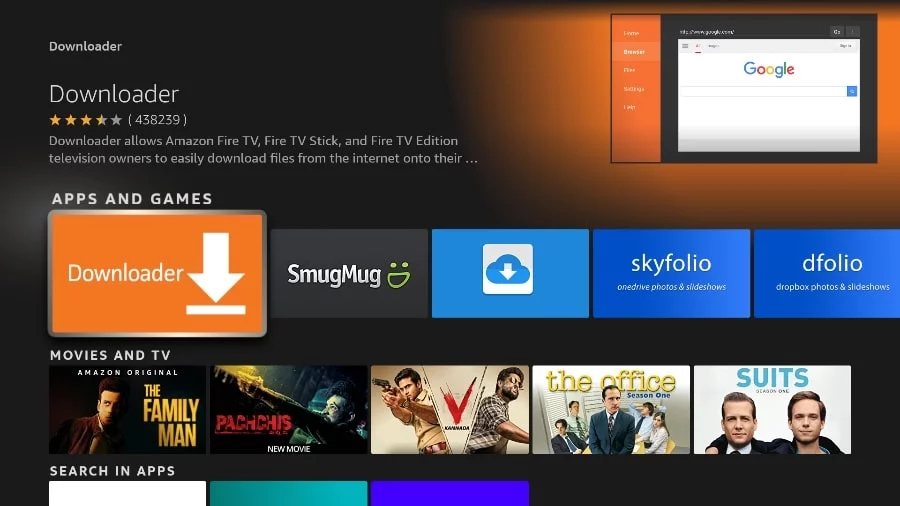
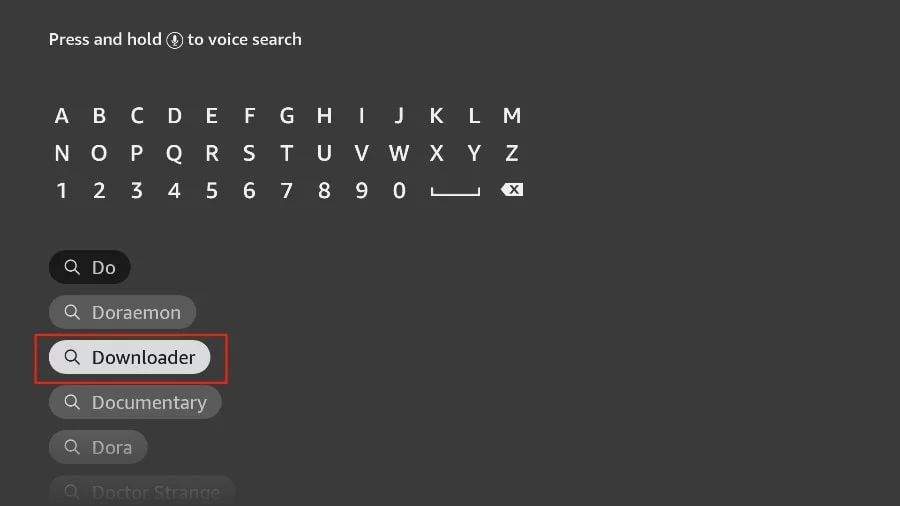
Downloader app appearing in Firestick search results 05

Search for Downloader

Start typing Downloader. Select the Downloader app when it appears in the search suggestions or results.

Look for: The Downloader app is commonly recognizable by its orange-colored app icon.
Downloader app Get button on Amazon Fire TV 06

Install Downloader

Open the Downloader application page and select Get, Download, or the available installation button.

Next: Wait for the installation to complete, then open Downloader to continue with the next step of your Firestick IPTV setup.

Downloader Installed?

Once Downloader is installed and ready, continue to the next step of your XTREME HD IPTV Firestick installation guide.

→