
 01
01
Press the Home Button
Press the Home button on your Firestick or Fire TV remote to return to the main screen.

Amazon Fire TV devices can be used with compatible IPTV applications. For the best experience, choose a supported IPTV player and follow the installation instructions below. IPTV Smarters and TiviMate are examples of IPTV player options.
Before installing a compatible IPTV player on your Amazon Fire TV device, you may need to adjust the developer settings. Follow the steps below according to your Firestick software version.
Important: Fire TV menus and setting names can vary depending on your device model and software version. If you do not see the same option shown below, follow the alternative method in the second section.
01
Press the Home button on your Firestick or Fire TV remote to return to the main screen.
 02
02
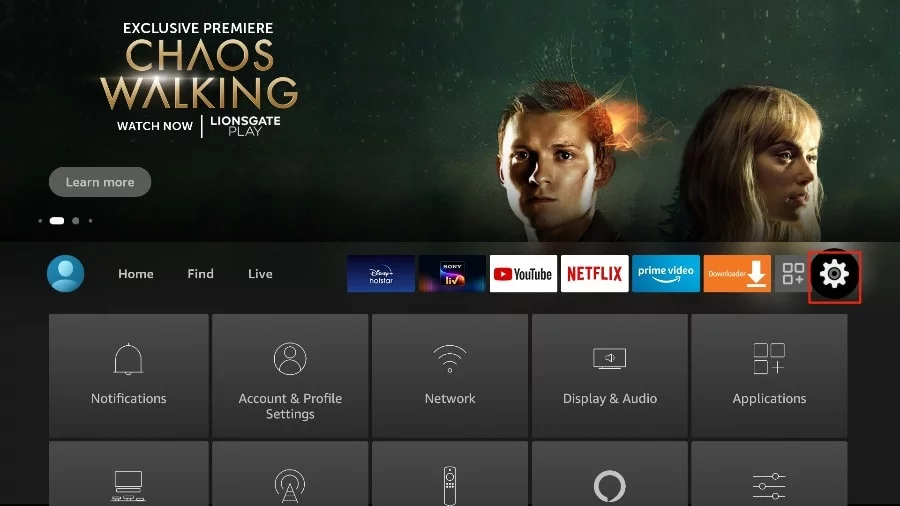
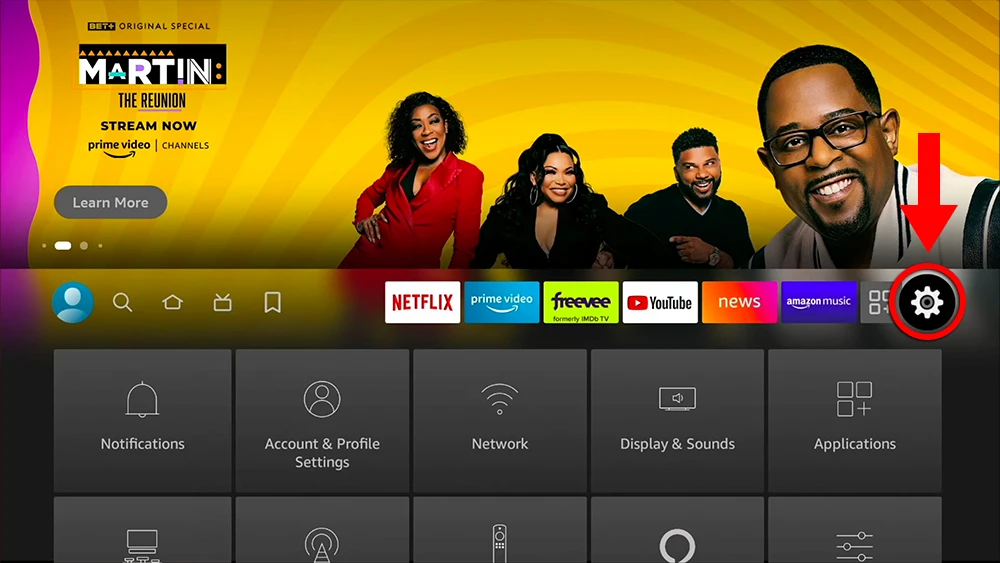
Navigate to the Settings icon, usually displayed toward the right side of the Fire TV home screen.
 03
03
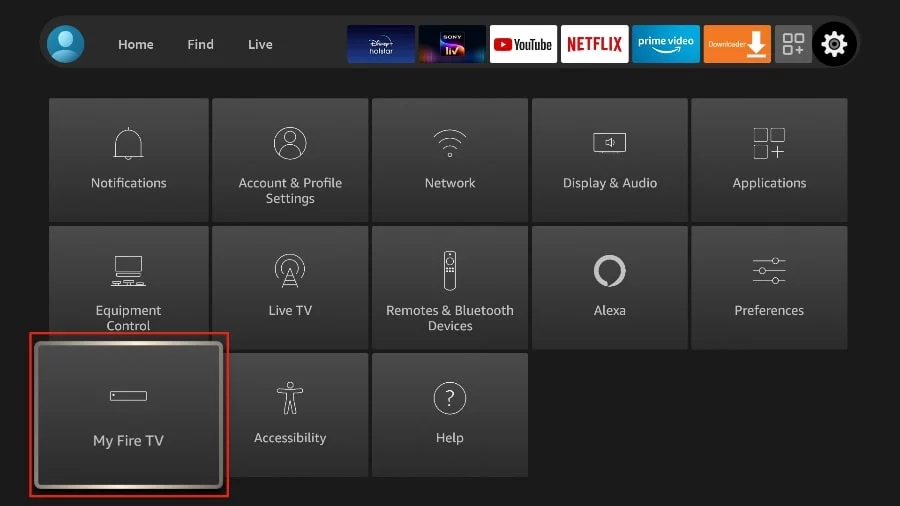
Scroll through the settings menu and select My Fire TV.
 04
04
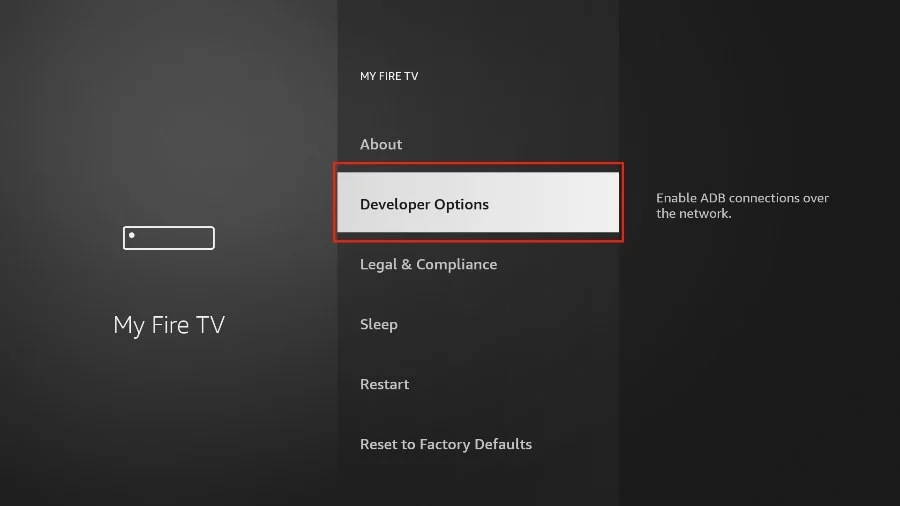
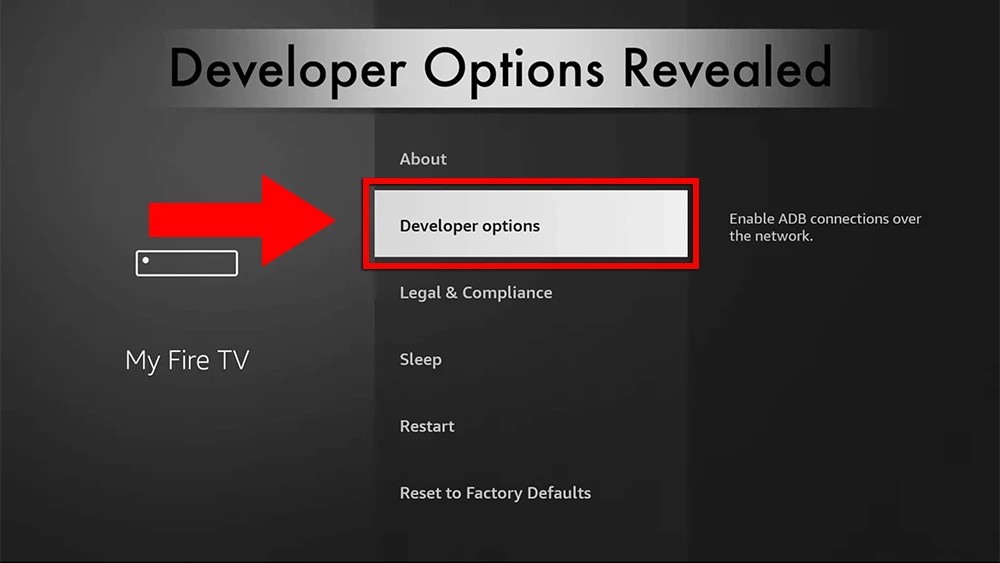
Inside My Fire TV, select Developer Options.
05
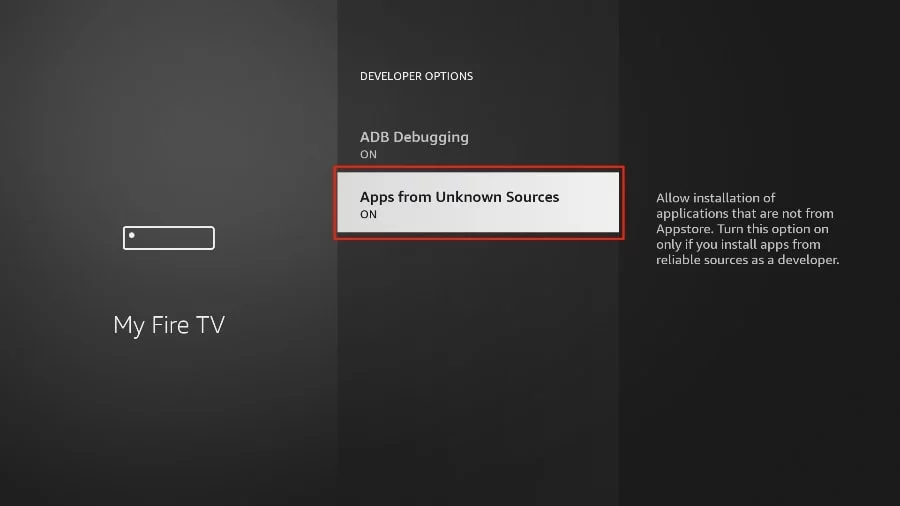
Look for Apps from Unknown Sources. If the option is available and disabled, select it to enable installation of compatible apps from sources outside the Amazon Appstore.
Once the required developer setting is enabled, continue with the installation instructions for your chosen IPTV player.
 01
01
Press the Home button on your remote and open the Settings menu.
 02
02
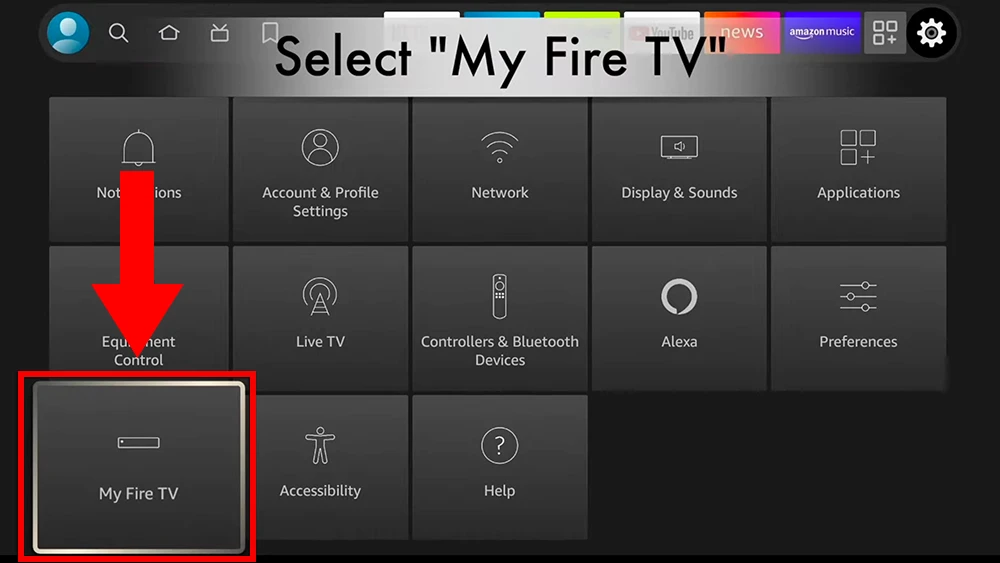
Scroll down and choose My Fire TV from the available settings.
 03
03
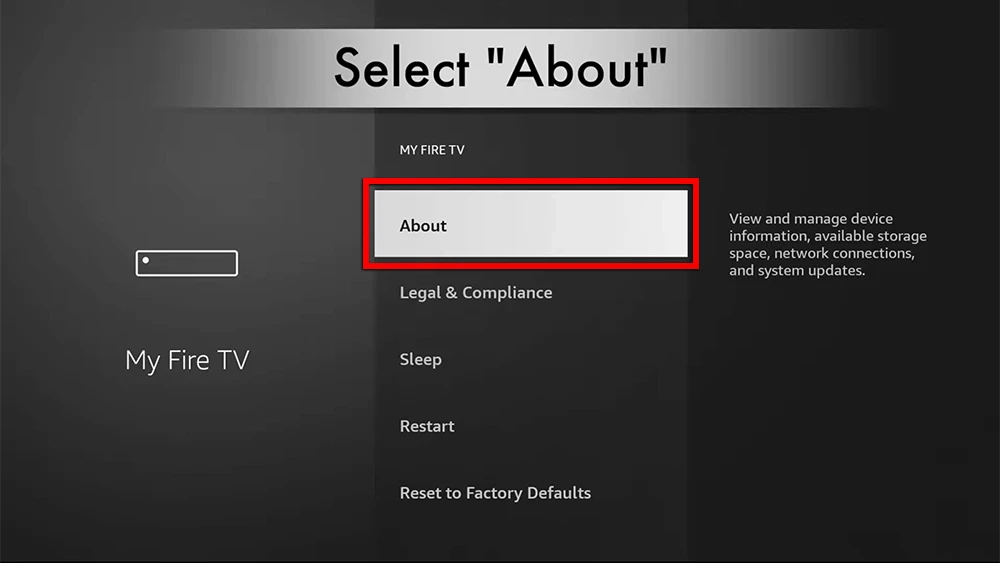
Select About inside the My Fire TV menu.
 04
04
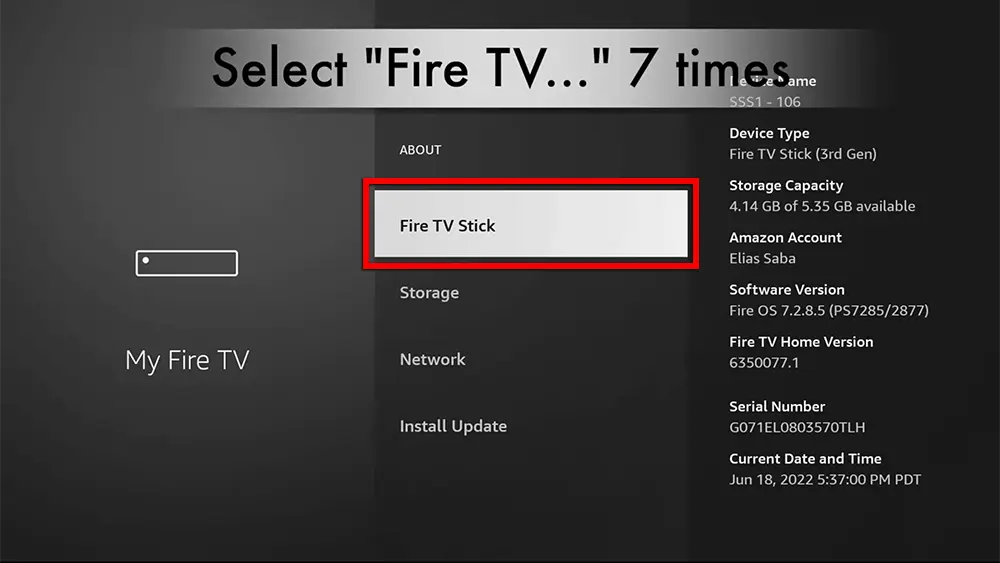
Find your Fire TV Stick device name and select it repeatedly, up to 7 times.
 05
05
Return to the previous menu and select Developer Options when it becomes available.
 06
06
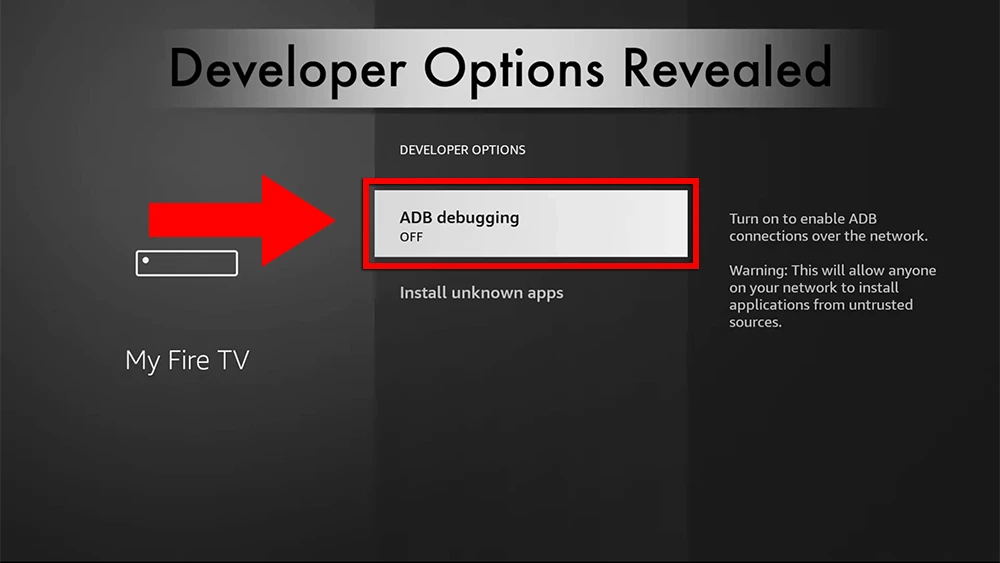
If your installation method requires it, locate ADB Debugging and enable the option.
After completing the appropriate Fire TV settings, continue to the next section of this guide to install and configure a compatible IPTV player on your device.
Follow these simple steps to find and install the Downloader app on your compatible Amazon Fire TV or Firestick device.
Before you begin: Make sure your Firestick is connected to the internet and that you have completed the required Fire TV settings from the previous step of this IPTV installation guide.
 01
01
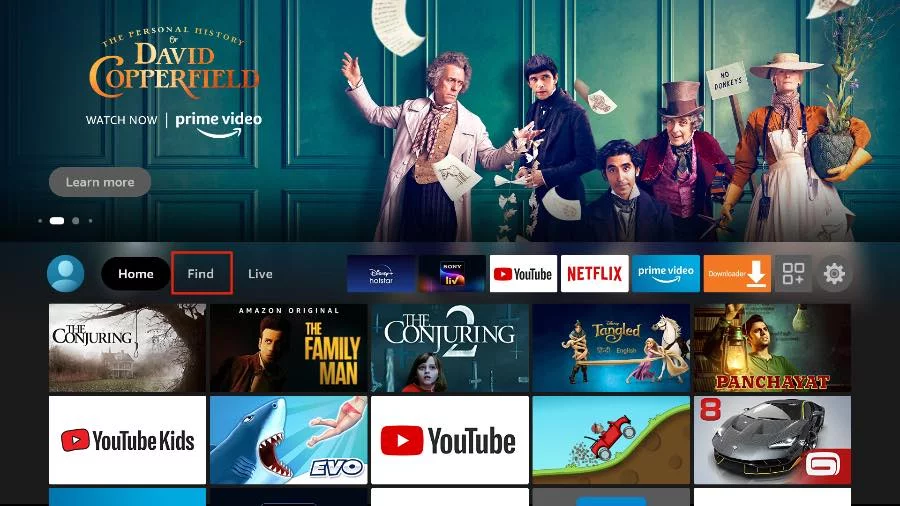
Press the Home button on your Firestick remote to return to the main Fire TV home screen.
 02
02
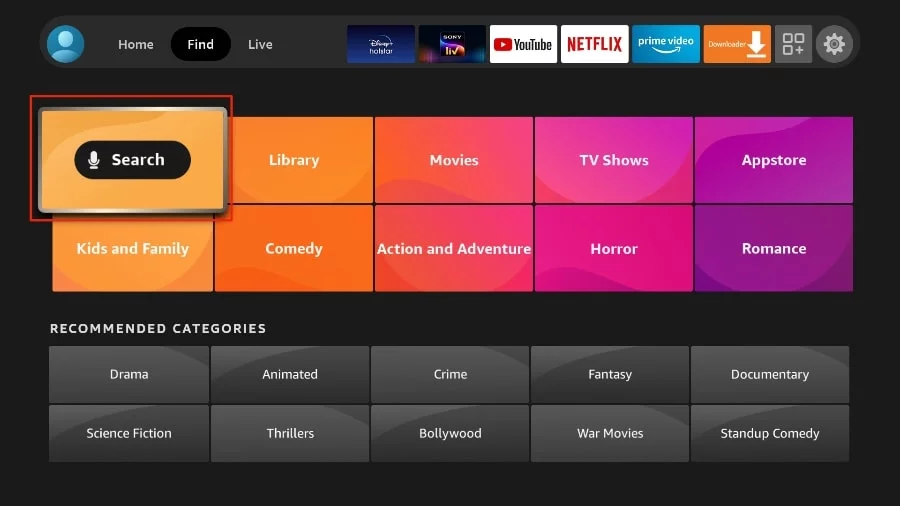
From the Fire TV home screen, navigate to the Find menu.
 03
03
Select Search at the top of the Find menu to search for an application.
 04
04
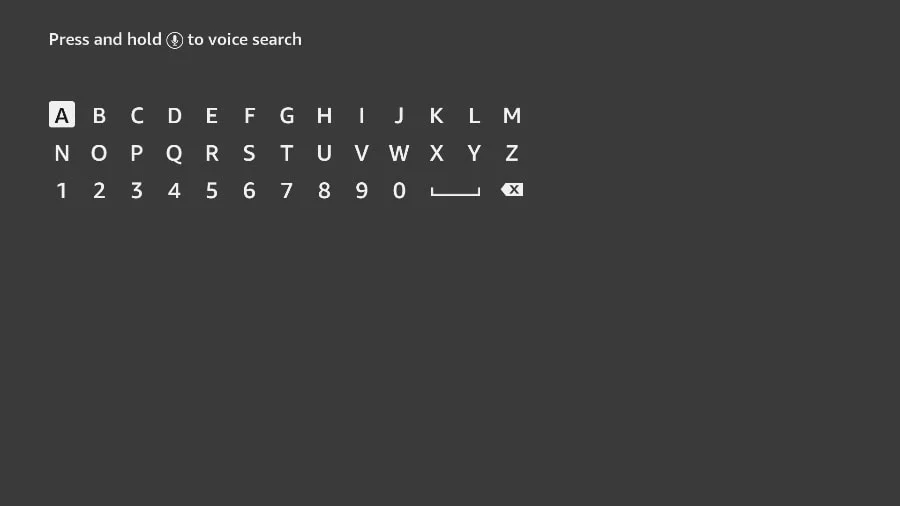
A virtual keyboard will appear on your screen. Use your Firestick remote to begin typing the name of the app.
 05
05
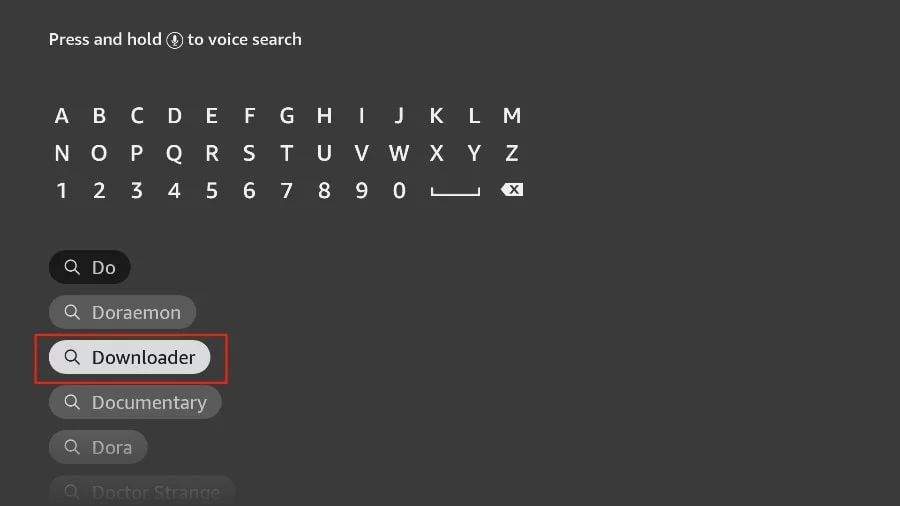
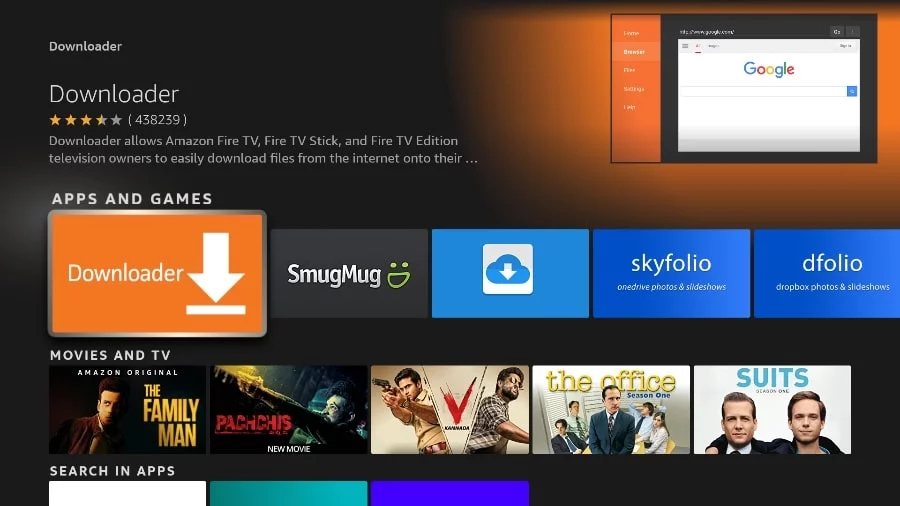
Start typing Downloader. Select the Downloader app when it appears in the search suggestions or results.
06
Open the Downloader application page and select Get, Download, or the available installation button.